

Tweaking.com Windows Repair Review: Does It Work?
Our hands-on review of Tweaking.com Windows Repair. See what it fixes, how it handles screen flickering, Free vs. Pro, and today’s exclusive Instant-Deals.com price.
For most people with a slow, glitchy or half-broken Windows install, Tweaking.com Windows Repair is the best free all-in-one fix to try before a full reinstall. It resets the things Windows quietly breaks over time: registry and file permissions, Windows Update, the firewall, network settings and core services.
That matters because Windows degrades for everyone. Failed updates, uninstalled software, driver changes and malware all leave damage behind, which is why “windows repair” is one of the most-searched PC fixes every month.
We ran Windows Repair on two Windows 11 PCs and one Windows 10 laptop over 2 days. Here’s what it fixed, what it didn’t, and whether Pro is worth paying for.
Check Today’s Lowest Price on Tweaking.com Pro
Key Features: What Can Tweaking.com Fix?
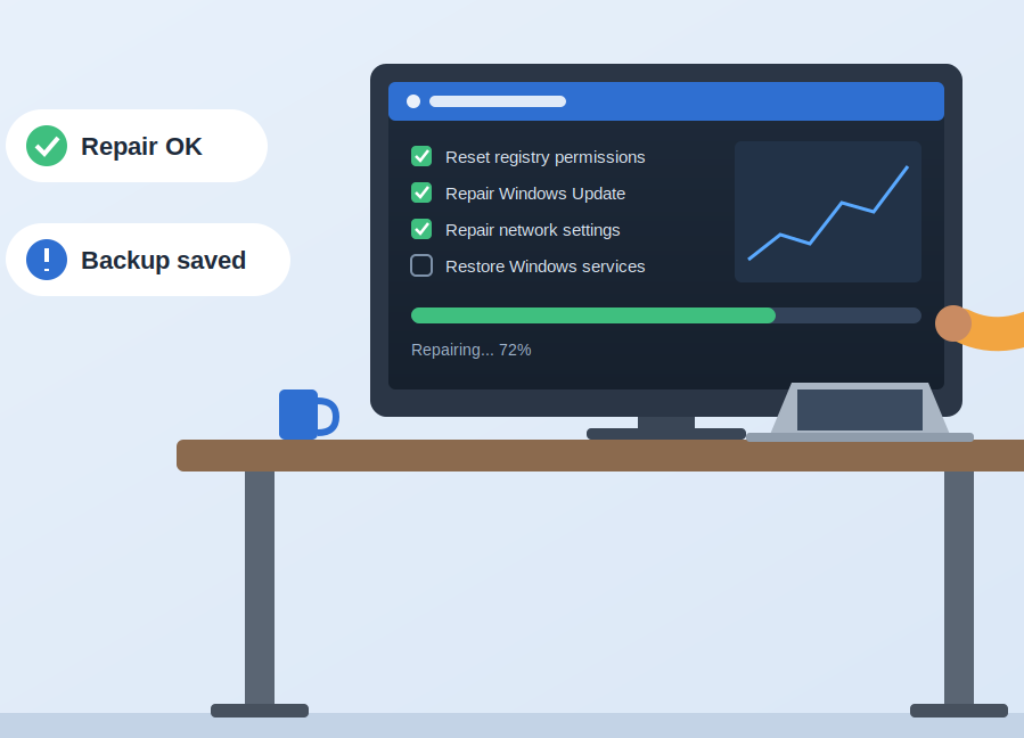
Windows Repair restores Windows’ default settings in the areas that break most often, so it can fix Windows problems that would otherwise mean a reinstall. Every repair runs from one checklist, and you can tick only the ones you need.
| Repair | What it fixes in practice |
|---|---|
| Reset registry & file permissions | Programs that won’t open, “access denied” errors, settings that won’t save |
| Register system files | Missing or broken DLL errors, features that silently stop working |
| Repair WMI | Broken system info, failing management tools and some installers |
| Repair Windows Update | Updates stuck downloading, failing to install or looping |
| Repair Windows Firewall | Firewall that won’t turn on or reports errors |
| Repair network (Winsock, DNS, proxy, hosts file) | No internet after malware or a bad VPN uninstall, sites redirecting |
| Remove policies set by infections | “Managed by your organization” lockouts left by malware |
| Restore important Windows services | Disabled services that break audio, networking or updates |
| Repair icons & unhide non-system files | Blank icons, files hidden by malware |
It also runs built-in pre-repair steps first: a registry backup, a system restore point, and optional disk and system file checks (SFC). You can reboot into Safe Mode from the app so repairs aren’t blocked by running software.
A common use is cleanup after a malware infection. Your antivirus removes the threat, and Windows Repair undoes the settings it changed.
How to Fix Screen Flickering & Display Issues with Tweaking
Tweaking.com can fix screen flickering when the cause is a damaged Windows install, not when it’s a bad cable, monitor or graphics driver. So run one 30-second test first to find out which you’re dealing with.
Quick test: press Ctrl + Shift + Esc to open Task Manager. If Task Manager flickers too, the problem is most likely your display driver or hardware. If everything flickers except Task Manager, an app or a broken Windows component is the likely cause, and that’s where Windows Repair helps.
If Task Manager flickers (driver or hardware): update or roll back your graphics driver, check that your refresh rate matches your monitor in Settings > System > Display > Advanced display, and try a different cable or port.
If only the desktop flickers (Windows or app issue), use Windows Repair:
- Run the pre-repair steps. Let it create a registry backup and restore point, then run the system file check to replace corrupted files that Explorer and the display stack depend on.
- Run the core repairs from Safe Mode. Reboot into Safe Mode from the app, then run register system files, reset permissions, restore important Windows services and repair Windows Update.
- Reboot and update. Restart normally, install any pending Windows updates that were stuck before, and check whether the flicker is gone.
If the flicker started right after a Windows update or a software install, this is usually the fastest fix short of a reinstall.
Tweaking.com Free vs. Pro: Which Should You Choose?
Choose Free for a one-off fix and Pro if you maintain PCs regularly. Every repair is included in the free version; Pro adds cleanup, tuning and convenience tools on top.
| Feature | Free | Pro |
|---|---|---|
| All Windows repairs | Yes | Yes |
| Registry backup & restore point | Yes | Yes |
| Personal and business use | Yes | Yes |
| Automatic program updates | No | Yes |
| Enhanced junk file / disk cleanup | No | Yes |
| Built-in system tweaks after repairs | No | Yes |
| Memory optimization (CleanMem) | No | Yes |
| Custom scripts | No | Yes |
| Your own logo (for IT techs and repair shops) | No | Yes |
| Priority support | No | Yes |
The free version has no nag screens or time limits, and you can preview Pro tools before buying. If you fix PCs for family, clients or a small office, Pro’s automation and branding pay for themselves quickly. [VERIFY: confirm current Pro feature list on tweaking.com before publishing]
Pricing and Discounts
Windows Repair Free costs $0. Windows Repair Pro starts at $24.95 per year
| Plan | Price (per year) | List price | Saving | PCs covered | Commercial use | Best for |
|---|---|---|---|---|---|---|
| Basic (Free) | $0 | — | — | Any | No | One-off home repairs |
| 1 PC Plan | $24.95 | $49.95 | 50% | 1 | Yes, per PC | A single home or work PC |
| 3 PC Plan (most popular) | $44.95 | $99.95 | 55% | 3 | Yes, per PC | Households and small offices |
| Yearly Tech License (best value) | $64.95 | $159.95 | 60% | Unlimited | Yes, unlimited PCs | IT techs and repair shops |
Pros & Cons
Windows Repair’s strength is depth of repair, and its weakness is a dated, technical interface.
Pros
- Deep system repairs that go beyond Windows’ built-in troubleshooters
- Lightweight, with an installer and a portable version
- Excellent at reversing settings left behind by malware
- Automatic backup and restore point before every change
- Supports Windows XP through Windows 11
- All repairs free, with no nags or bundled third-party software
Cons
- The interface looks dated next to modern PC utilities
- Not a fix for hardware or graphics driver faults
- A full repair run can take an hour or more
- Occasionally resets a setting you’d customized
How it compares
| Tool | Price | Main focus | Best for |
|---|---|---|---|
| Tweaking.com Windows Repair | Free / Pro [PRICE] | Repairing Windows settings, permissions and components | Fixing a broken or post-malware Windows install |
| Glary Utilities | Free / Pro | Cleanup and optimization suite | General tidying and startup management |
| Windows Repair Toolbox | Free | Launcher for third-party repair utilities | Technicians who want many tools in one place |
| BleachBit | Free, open source | Junk file and privacy cleaning | Freeing disk space, clearing traces |
If something in Windows is actually broken, Tweaking.com is the stronger pick. The others are better for cleanup than repair.
Final Verdict: Is It Worth the Download?
Yes. Tweaking.com Windows Repair is worth downloading for anyone whose PC has Windows Update failures, permission errors, broken networking or leftover malware damage. The free version alone fixes most of these, and it backs up your system before touching anything.
Upgrade to Pro if you maintain more than one PC or want automatic updates, deeper cleanup and built-in tweaks. Download Tweaking.com Windows Repair